If you’ve ever looked at a DMARC record, you’ve probably seen something like rua=mailto:dmarc@yourdomain.com. That little rua tag might seem like just another technical detail, but it’s actually one of the most valuable parts of your DMARC setup.
RUA stands for Report URI for Aggregate data, and it tells mailbox providers where to send reports about your email authentication. These reports give you visibility into who’s sending email using your domain, whether those emails are passing authentication, and where potential problems exist.
Understanding and properly configuring your DMARC RUA value is key to improving email deliverability, spotting unauthorized senders, and maintaining a healthy email ecosystem. Let’s break down what RUA is, why it matters, and how to use it effectively.
Below, we’ll show you how to configure your DMARC RUA value to:
- Improve email deliverability
- Find (and stop) unauthorized senders
- Maintain a healthy email ecosystem
What is DMARC RUA?
DMARC RUA (Report URI for Aggregate data) is a tag in your DMARC record that specifies where mailbox providers should send aggregate reports about your email authentication results. These reports provide a daily summary of all emails sent using your domain, including which messages passed or failed SPF and DKIM checks.
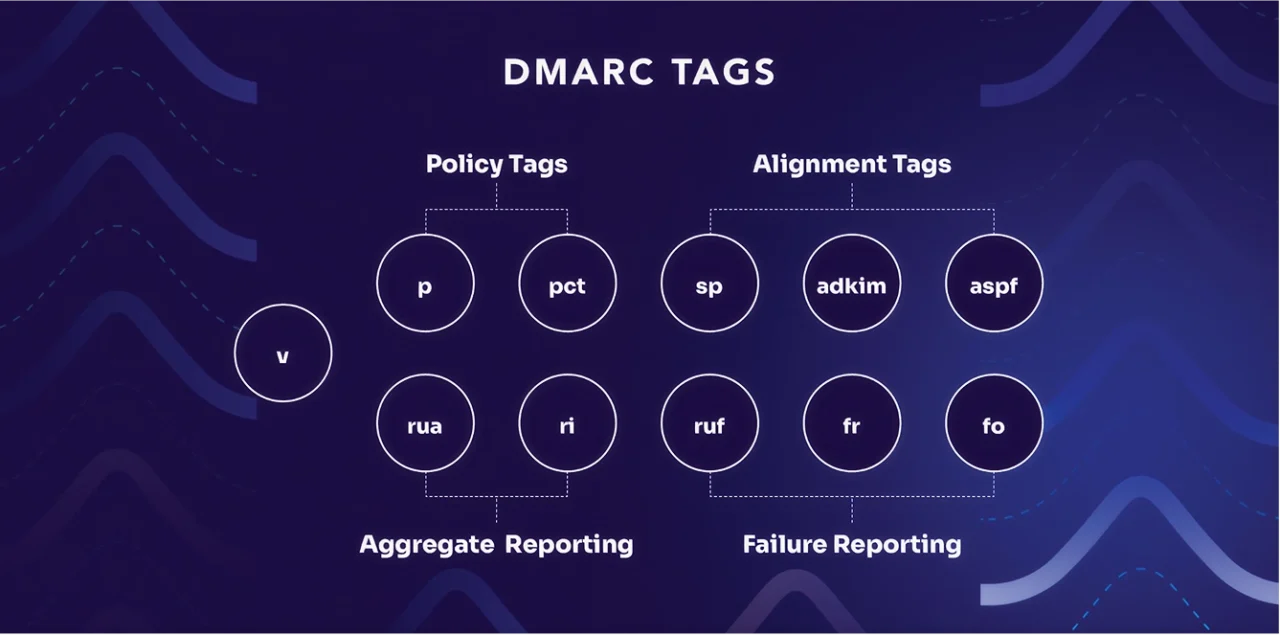
Every day, major mailbox providers (like Gmail, Yahoo, and Microsoft) compile data about emails claiming to be from your domain and send that information to the email address you specify in your RUA tag.
A RUA tag looks like this:
rua=mailto:dmarc-reports@yourdomain.comYou can also specify multiple addresses if you want reports sent to different teams or services:
rua=mailto:security@yourdomain.com,mailto:dmarc@thirdparty.comThese aggregate reports arrive in XML format and contain detailed information about:
- Total email volume from your domain
- Which IPs and services are sending on your behalf
- SPF and DKIM authentication results
- DMARC alignment status
- Disposition actions taken (none, quarantine, or reject)
Without an RUA tag in your DMARC record, you’re flying blind. You won’t know if legitimate emails are failing authentication, if unauthorized senders are using your domain, or if your DMARC configuration needs adjustment.
Curious what your domain’s DMARC tags look like? Use Valimail’s free domain checker.
DMARC aggregate reports and RUA
DMARC aggregate reports are the files that get sent to your RUA address. These reports arrive daily (usually within 24 hours) from each mailbox provider that received an email from your domain.
They give you a complete picture of your email authentication status across all major inbox providers. Each aggregate report includes:
- Volume metrics: How many emails were sent from your domain to that provider.
- Source identification: The IP addresses and hostnames sending email as you.
- Authentication results: Whether each source passed or failed SPF and DKIM.
- Alignment status: Whether SPF and DKIM are aligned with your From domain.
- Disposition: What action the mailbox provider took (none, quarantine, reject).
Unfortunately, these reports come in XML format, which isn’t exactly user-friendly. A single day’s worth of aggregate reports from Gmail might look like hundreds of lines of code. This is where most people get stuck…they set up their RUA tag, reports start flooding in, and they have no idea what to do with them.
That’s why we built Valimail Monitor. Instead of manually parsing XML files, Valimail automatically translates those reports into readable dashboards that show you exactly who’s sending email using your domain and whether those messages are passing authentication.
It turns raw data into actionable insights without requiring you to become an XML expert.
How to set up your DMARC RUA value
Here’s how to configure your DMARC RUA value:
- Choose a dedicated email address for reports: Don’t use your personal inbox or a general support email. Create a dedicated address like dmarc-reports@yourdomain.com or dmarc@yourdomain.com specifically for receiving aggregate reports. These reports can add up quickly, and you don’t want them cluttering your main inbox.
- Add the RUA tag to your DMARC record: Your DMARC record is published as a TXT record at _dmarc.yourdomain.com in your DNS settings. The RUA tag is part of that record and looks like this: v=DMARC1; p=none; rua=mailto:dmarc-reports@yourdomain.com. The mailto: prefix is required. Without it, mailbox providers won’t know where to send the reports.
- Verify the email address can receive mail: Before publishing your DMARC record, make sure the email address you’re using actually exists and can receive messages. If the address bounces, you won’t get any reports.
- Add multiple addresses if needed: You can specify multiple RUA addresses by separating them with commas: rua=mailto:dmarc@yourdomain.com,mailto:security@yourdomain.com. This is useful if you want reports sent to both your internal team and a third-party monitoring service.
- Publish the DMARC record in DNS: Once you’ve configured your RUA tag, publish the complete DMARC record in your DNS settings. Changes can take a few hours to propagate, so don’t expect reports immediately.
- Wait for reports to arrive: Aggregate reports typically start arriving within 24-48 hours after publishing your DMARC record. Different mailbox providers send reports at different times, so you’ll likely receive multiple reports per day from various sources.
How to read (and use) DMARC aggregate reports
DMARC reports arrive in XML format, which means they look more like code than a helpful summary.
In theory, you could manually parse these XML files to extract this information. Still, that’s tedious, time-consuming, and prone to human error—especially when you’re receiving dozens of reports daily from different mailbox providers.
Valimail Monitor provides a better way. Instead of wrestling with XML files, Monitor automatically ingests your aggregate reports and translates them into a clean, visual dashboard. You can instantly see:
- Every service sending email using your domain
- Which sources are passing or failing authentication
- Unauthorized senders or potential spoofing attempts
- Trends in your email authentication over time
Also, it’s completely free. You get full visibility into your DMARC data without needing to touch a single XML file. Just point your RUA tag to Monitor, and it handles the rest.
RUA vs. RUF: What’s the difference?
RUA and RUF sound similar, but they serve different purposes.
- RUA (Report URI for Aggregate data) sends you daily summaries of all email authentication activity. These aggregate reports give you the big picture: total volume, which sources are sending, and overall pass/fail rates. It shows trends and patterns over time.
- RUF (Report URI for Forensic data) sends you individual failure reports in real-time whenever a message fails DMARC. These forensic reports include specific details about each failed email, like headers and sometimes even message content. It notifies you immediately when something goes wrong.
RUA reports are retrospective and aggregated, while RUF reports are immediate and specific.
Most organizations start with RUA only because:
- Aggregate reports provide enough visibility for most needs
- Forensic reports can contain sensitive information (like email content)
- Many mailbox providers don’t send RUF reports due to privacy concerns
- The volume of RUF reports can be overwhelming if you have authentication issues
If you do want forensic reports, you’d add a RUF tag to your DMARC record like this:
v=DMARC1; p=none; rua=mailto:dmarc@yourdomain.com; ruf=mailto:forensic@yourdomain.comHowever, unless you have specific compliance requirements or are actively investigating authentication problems, RUA reports likely give you everything you need to monitor and improve your email authentication.
Gain actionable DMARC insights with Valimail
Setting up your DMARC RUA value is just the first step. The real value comes from actually using those aggregate reports to improve your email authentication and deliverability.
Valimail Monitor automatically collects and analyzes your DMARC aggregate reports, turning raw XML data into clear, actionable insights. You’ll instantly see which services are sending on your behalf, spot authentication failures before they impact deliverability, and identify unauthorized senders trying to use your domain.
It’s completely free. No credit card required, no trials, no obligations.

Stop guessing about your email authentication status. Get the visibility you need to protect your domain and improve deliverability with Valimail Monitor.