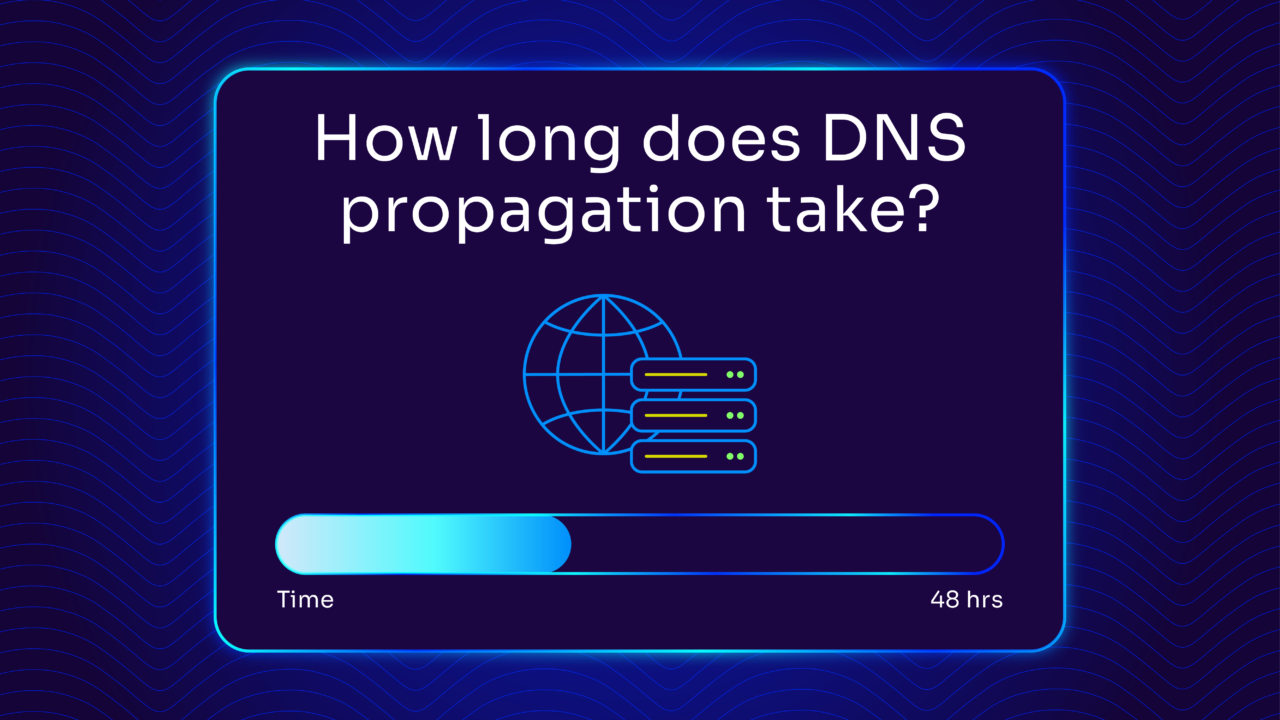
DNS propagation typically takes anywhere from a few minutes to a few hours . Yes, some providers warn about 24-48 hour windows, but that’s a conservative ceiling rather than an average.
How fast your DNS change actually propagates depends on three factors:
- Your zone’s refresh interval
- How quickly secondary servers sync
- Time to Live (TTL) value on your records
Once you understand those three things, you can set realistic expectations instead of waiting two days for something that may already be done.
DNS updates are a fundamental aspect of internet operations, affecting everything from your site’s accessibility to implementing new services. The process involves changing records on authoritative DNS servers, which, in turn, signal these updates across the internet.
Below, we’ll explain everything you need to know about DNS propagation times and what factors impact DNS changes.
How DNS changes happen
Domain name system (DNS) information is hosted on Authoritative DNS servers. These servers are the source of truth for any DNS information you publish for your domains. It is considered a best practice to have more than one DNS server for any domain. While two is considered the minimum, many organizations will have more.
To ensure that all servers have the same data at the same time, DNS changes are always made on one server (typically called a Primary), and these changes are propagated automatically to the other servers (typically called Secondaries) using a part of the DNS protocol called Zone Transfers.
How DNS updates propagate
To synchronize the DNS information, the Secondary servers will periodically check with the Primary server to see if there have been any changes in the data hosted there. If they detect a change, they will pull down the update.
The frequency of this check is called the Refresh interval for the domain, and it is defined in a DNS record called the Start Of Authority (SOA) record associated with that DNS zone. The Refresh interval is the maximum time it should take for all of the Secondary servers to get an update from the Primary. Common refresh intervals seen on the Internet range from thirty minutes to a couple of hours but can vary based on what the domain administrator wants to specify.
However, this isn’t the only way to propagate DNS updates. There are also the following methods:
-
- DNS Notify: DNS Notify causes the Primary server to proactively notify the Secondary servers that there has been an update that they need to get. The use of DNS Notify can reduce the propagation time between authoritative servers to a few seconds.
-
- Propriety Methods: Some DNS server vendors also have their own proprietary methods to synchronize authoritative servers, which can reduce the synchronization process to a few seconds.
How long do DNS updates take?
So that should be it, right? It could take anywhere from a few seconds to a couple of hours, right? Well, possibly — but there is one other factor to consider, and that’s Time to Live (TTL).
Time to Live (TTL): the other factor that controls propagation
When you look up a DNS name (or when your browser does), you don’t query the authoritative server for the domain/zone directly. There are millions of DNS servers on the internet, which is the key to the system’s robustness—but you need a way to get the authoritative data for your request. This is done by a Caching DNS server.
A Caching DNS server is the DNS server that your server (or your own laptop) is configured to query whenever it has a question for DNS. This server’s job is to find the proper Authoritative server for the information you seek.
Any DNS records that your Caching server finds for you will come with a Time To Live. To keep from overloading the Authoritative servers, whenever a Caching server resolves a DNS name, it will remember that (cache it) for a period of time.
As a result, if someone else asks for that same record (or you ask the same question again), the Caching server doesn’t have to go find the information again—it can just deliver the information from its cache (assuming that the information is still fresh enough).
The freshness of that data (the amount of time the Caching server can remember this information) is controlled by the Authoritative server. The owner of the Authoritative server configures an appropriate Time To Live for the domain. Think of it as a “Sell By Date” for the domain information.
This TTL balances two competing demands:
-
- Reducing the load on the Authoritative server
- Ensuring changed records get propagated quickly
DNS propagation time formula
While it may take much less time, as described above, the TTL plus the Refresh interval should spell out the absolute maximum.
DNS Propagation Time = Maximum of the Refresh Interval for the Zone + Time to LiveIf you don’t see a change to DNS within that time, it’s time to start troubleshooting.
DNS cache and why it matters for propagation
DNS caching is the mechanism behind why propagation isn’t instant even after the authoritative servers have updated.
When anyone queries your domain, their device asks a caching DNS server for the answer. That server looks up the record, delivers it, and then stores (caches) it for however long your TTL specifies. During that window, it won’t go back to check for updates — it’ll serve the cached version instead.
This means there can be a period after you’ve updated your DNS records on the authoritative server where a portion of the internet is still seeing old information. The length of that window is exactly your TTL value.
Set a low TTL before a planned change, and the cache clears quickly. Leave it high, and old records linger longer.
f you’re planning a DNS change and need it to propagate as fast as possible, lower your TTL to 300 seconds (5 minutes) a few hours before making the change. Once propagation is complete, restore the TTL to a more standard value.
Troubleshooting DNS updates
There are a few things that can go wrong, but these should be rare. In almost all cases, these are issues that arise on the Authoritative DNS servers.
Serial numbers
I mentioned above that the Secondary servers can detect when a change is made on the Primary. How does it do this? Every DNS Zone has a version number, called a serial number. Every time you make a change to the data on the Primary server, you need to increment this serial number on the Secondary. If you forget to do this, the Secondary servers will not detect the change, and propagation will fail.
Note: Many commercial DNS vendors automate the process of incrementing the serial number to reduce the chances of this happening.
Communications issues
You may run into cases where the change seems to be available only intermittently—or not at all —even though you updated the serial number. The typical cause here is a lack of network connectivity between the Primary and the Secondaries. This is something that will need to be investigated by the networking team.
Note: There can also be issues if the clocks on the Primary and Secondary servers differ by too much. In this case, you would want to ensure that all servers are synchronized to the same NTP server.
How to check if DNS has propagated
Tools like whatsmydns.net and dnschecker.org query DNS servers in multiple locations simultaneously and show you the current value they’re returning for any record type. If servers in different regions are returning your new record value, propagation is complete in those locations. If some are still returning the old value, propagation is still in progress.
Using the command line. The nslookup and dig commands let you query a specific DNS server directly, bypassing your local cache:
nslookup yourdomain.com 8.8.8.8This asks Google’s public DNS server (8.8.8.8) directly for your domain’s current record. Swap in 1.1.1.1 for Cloudflare’s resolver. If both return your updated value, propagation has reached the major public resolvers.
Checking your local cache. If a propagation checker shows the update is complete globally but you’re still seeing the old value in your browser, your local machine’s DNS cache may still hold the old record. You can flush it:
- Windows:
ipconfig /flushdns - macOS:
sudo dscacheutil -flushcache; sudo killall -HUP mDNSResponder - Linux:
sudo systemd-resolve --flush-caches
Get help updating your DNS
As you can see, DNS updates normally take much less time to propagate than the “24-48 hours” you’ve heard.
In normal circumstances, the TTL for a DNS zone plus its Refresh interval should give you the maximum time it will take for all DNS servers to get the latest information. Generally, that’s a lot less than 24-48 hours.
However, managing DNS changes effectively requires more than just understanding propagation times—it demands a comprehensive approach to DNS management that minimizes errors, accelerates updates, and ensures seamless global propagation.
This is where Valimail steps in.
As a leader in email authentication and DNS management solutions, Valimail provides businesses with the solutions and insights needed to manage DNS changes confidently and efficiently. We streamline your DNS updates with automated tools that reduce the risk of human error and tighten propagation times.
Update your DNS and get valuable insights into your sending services with Valimail Monitor. After updating your DNS, our software expedites service configuration and DMARC implementation by eliminating the need for ongoing manual analysis of XML-based DMARC reports.