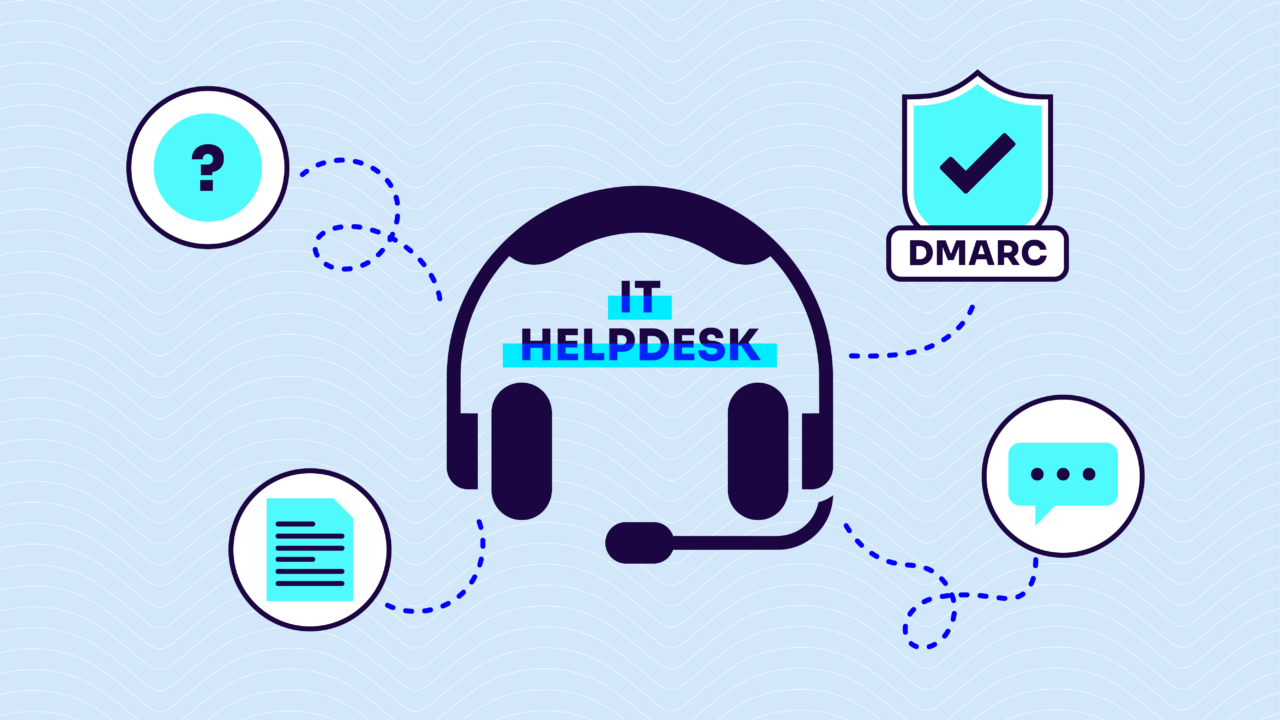
Domain-based Message Authentication, Reporting, and Conformance (DMARC) failures don’t always land on the security team’s desk. More often, they show up as helpdesk tickets.
- “My email didn’t arrive.”
- “A customer says our messages are going to spam.”
- “I added a new sending service, and now everything is bouncing.”
The helpdesk is the front line for these issues, but most helpdesk teams don’t have visibility (or knowledge) into DMARC data or a clear process for diagnosing authentication failures. They’re troubleshooting email delivery problems without seeing the one thing that would explain them.
This guide is for IT support teams that want to understand DMARC well enough to triage email delivery issues, reduce repeat tickets, and know when to escalate.
Why DMARC issues end up as helpdesk tickets
When DMARC authentication fails, the symptoms are visible to end users but the root cause isn’t. A sales rep sees a bounce-back error. A marketing manager notices campaign deliverability tanking. A customer complains they never received a confirmation email.
The tickets get filed, and the helpdesk starts troubleshooting.
The problem is that without access to DMARC reporting data, the helpdesk is working blind. The symptoms (bounced email, spam placement, missing messages) all have the same look from the outside. But the causes are completely different, and each one requires a different fix.
Here are the ticket types that typically track back to DMARC:
- A user’s outbound email is bouncing with an authentication error (like Microsoft’s 550 5.7.515)
- Email from a third-party service (CRM, marketing platform, ticketing system) isn’t reaching recipients
- A recently added sending service is failing to deliver
- External contacts report that messages from your domain are landing in spam
- Spoofed email is being sent from your domain, and confused recipients are replying to your real team
Each of these has a DMARC-related explanation. The helpdesk just needs the right context to see it.
DMARC basics for helpdesk teams
You don’t need to become a DMARC expert to triage authentication issues. However, you do need to understand the basics.
DMARC is an email authentication protocol that checks whether incoming email passes Sender Policy Framework (SPF) and/or DomainKeys Identified Mail (DKIM) authentication, and whether the authenticated domain aligns with the domain in the “From” address. If alignment fails, the receiving server follows the instructions in your DMARC policy.
There are three DMARC policies, and each one produces different symptoms when email fails authentication:
| DMARC policy | What happens to failing email | What the helpdesk sees |
| p=none | Nothing. Email is delivered normally. | Fewer delivery complaints, but spoofing-related tickets may increase (confused recipients getting phishing email from your domain). |
| p=quarantine | Failing email goes to the spam/junk folder. | Users or external contacts report messages landing in spam instead of the inbox. |
| p=reject | Failing email is blocked entirely. | Bounce-back errors, missing messages, and delivery failures for misconfigured senders. |
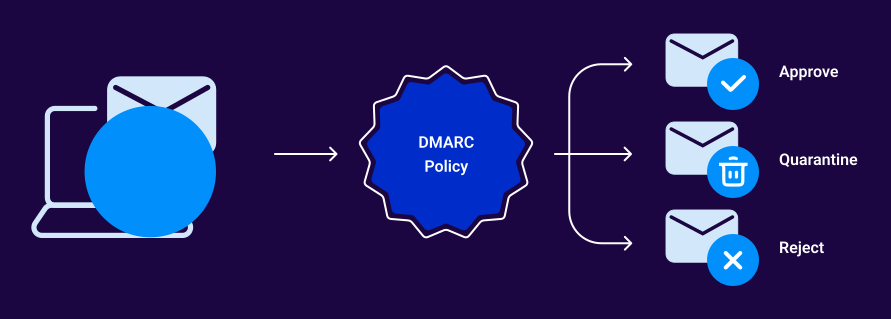
Knowing which policy your domain is using tells the helpdesk what kind of failures to expect and where to look first.
5 common DMARC failures and how to diagnose them
Most DMARC-related helpdesk tickets fall into a handful of patterns. Here’s what to look for:
1. SPF alignment failure (new sending service not included)
Email from a third-party platform (marketing, CRM, support) is bouncing or going to spam.
What’s likely happening: The sending service’s IP addresses aren’t listed in your domain’s SPF record. The email technically comes from a server that your domain hasn’t authorized, so SPF fails. If DKIM isn’t covering the gap, DMARC fails too.
How to verify: Check your domain’s SPF record using a DNS lookup. Compare it against the sending service’s required SPF include statement (usually documented in their setup guides). If the include is missing, that’s your culprit. This is an escalation to whoever manages your DNS records.
2. DKIM signature missing or misaligned
Email is being flagged or rejected even though the sending service is listed in SPF.
What’s likely happening: The service isn’t signing email with DKIM, or the DKIM signing domain doesn’t match your “From” address. SPF alone might pass, but without DKIM alignment, DMARC can still fail depending on your configuration.
How to verify: Check the email headers of a failing message. Look for a DKIM-Signature header. If it’s missing, DKIM isn’t configured for that sender. If it’s present but the d= value doesn’t match your domain, alignment is the issue.
3. DNS propagation delay after a recent change
Authentication was working, then suddenly stopped after a DNS update.
What’s likely happening: Someone updated an SPF, DKIM, or DMARC record, but the change hasn’t fully propagated across DNS servers yet. Some receiving servers are seeing the old record while others have picked up the new one, creating intermittent failures.
How to verify: Use a DNS propagation checker to see whether the updated record is live globally. If propagation is still in progress, the fix is waiting (and setting expectations with the affected users).
4. Third-party service sending as your domain without authorization
External contacts are receiving suspicious email from your domain, or your team is getting confused replies to messages they didn’t send.
What’s likely happening: Someone (either inside your organization or externally) is using a service to send email as your domain without proper SPF/DKIM configuration. At p=none, those messages get delivered. At p=reject, they’re blocked.
How to verify: Check your DMARC aggregate reports for unrecognized sending IPs. If the source is internal (shadow IT), it needs to be authorized or shut down. If it’s external, your domain is being spoofed.
5. Email forwarding breaking DKIM signatures
Recipients who use email forwarding (mailing lists, auto-forwards) are reporting failures.
What’s likely happening: When email is forwarded, some forwarding services modify the message body or headers, which breaks the original DKIM signature. The forwarded message arrives at its final destination with a broken signature, and DMARC fails.
How to verify: This is a known limitation of DMARC. Check the email headers for a modified DKIM signature or a forwarding service in the delivery path. There’s no simple fix on the sender side, but it’s a useful context for the helpdesk to avoid chasing a configuration problem that doesn’t exist.
How to integrate DMARC into your helpdesk workflow
Knowing what causes DMARC failures is one thing, but building a repeatable process around it is what actually reduces ticket volume.
- Give your helpdesk read access to DMARC monitoring. If your organization uses a DMARC monitoring platform, make sure helpdesk analysts can view the dashboard. They don’t need to change configurations. They just need to see which senders are passing and failing. That visibility alone eliminates most of the guesswork.
- Create a DMARC troubleshooting runbook. Document the common failure patterns above with step-by-step triage instructions. Include what to check first, what questions to ask the reporter, and when to escalate. A simple decision tree goes a long way.
- Establish clear escalation paths. The helpdesk should be able to identify the symptom and likely cause, but configuration changes (updating SPF, configuring DKIM, adjusting DMARC policy) belong with the email or security team. Define who owns what.
- Tag DMARC-related tickets. Tracking these tickets as a category helps you spot trends. If the same third-party sender is generating tickets every month, that’s a signal to fix the configuration rather than keep troubleshooting the same issue.
- Set up authentication failure alerts. Most DMARC monitoring platforms support email alerts when authentication failures spike. Route those alerts to the helpdesk so they know about issues before users start filing tickets.
Choosing DMARC helpdesk software that supports helpdesk operations
Not every DMARC platform makes its data accessible to support teams. If your helpdesk is going to triage DMARC-related tickets, the software behind it needs to be readable by non-specialists.
What to look for:
- Plain-language reporting. Dashboards that translate raw XML into clear, visual data. If your helpdesk analysts need to parse XML to answer a ticket, the platform isn’t working for you.
- Sending service identification by name. Seeing “Mailchimp” is useful. Seeing “198.2.xxx.xxx” is not. The platform should map IP addresses to known sending services automatically.
- Real-time alerts. Authentication failure notifications that can be routed to the helpdesk queue so issues get flagged before they become tickets.
- Accessible dashboards. Role-based access that lets helpdesk teams view (but not modify) DMARC data without needing admin credentials.
Valimail Monitor does all of this for free (yes, really). It identifies sending services by name using the industry’s largest network of pre-decoded IP addresses, provides clear dashboards that any team member can read, and gives you immediate visibility into your domain’s authentication status.
And when you’re ready to go beyond monitoring, Valimail Enforce automates the authentication fixes that generate helpdesk tickets in the first place, so your team spends less time troubleshooting email delivery and more time on the work that matters.
Sounds nice, right? Fortunately, it’s not too good to be true. See for yourself.
Frequently asked questions
How do IT helpdesks handle DMARC failures?
By accessing DMARC monitoring data, following a structured troubleshooting runbook, and escalating configuration changes to the email or security team. The helpdesk’s role is triage and diagnosis, not DNS configuration.
What tools help diagnose DMARC issues?
DMARC monitoring platforms (for aggregate report data and sender identification), DNS lookup utilities (for checking SPF and DKIM records), and email header analyzers (for inspecting authentication results on individual messages).
Does DMARC software integrate with helpdesk platforms?
Not directly in most cases. But DMARC monitoring solutions can feed into helpdesk workflows through email alerts, shared dashboard access, and ticket tagging. The goal is to give support teams visibility into authentication data instead of replacing the helpdesk platform.
What does “DMARC none” mean for helpdesk software?
It means your domain’s DMARC policy is set to p=none (monitoring only). Failing email still gets delivered, so the helpdesk won’t see DMARC-caused delivery failures. However, the domain is unprotected from spoofing, which can generate a different type of support ticket when recipients receive a phishing email impersonating your domain.