You’re getting reports of emails not being delivered, your authentication is failing, and suddenly your inbox is flooded with bouncebacks. Sound familiar? If you’re nodding your head right now, you’re probably dealing with DMARC issues. Don’t panic, though—you’re not alone.
The truth is, DMARC problems can feel like trying to find your keys in a dark room. You know they’re there somewhere, but you keep bumping into furniture along the way. Sometimes it’s a simple DNS record typo throwing everything off. Other times, it’s a complex web of third-party senders and misaligned identifiers causing the problem.
That’s why we’ve created this DMARC troubleshooting checklist. No fluff, no unnecessary tech jargon. It’s just a practical, step-by-step guide to get your email authentication back on track. Whether you’re new to DMARC or an authentication pro who just needs a systematic approach to problem-solving, this checklist will help you identify (and fix) what’s wrong.
Why you need a DMARC troubleshooting checklist
Your DMARC reports are showing authentication failures, someone from the sales team can’t get their emails to land in customer inboxes, and marketing is wondering why their latest campaign is stuck in spam folders. Without a clear plan of attack, you could spend hours (or even days) trying to find what’s wrong.
Each piece of the DMARC puzzle needs to fit perfectly: SPF, DKIM, alignment, and policies. Miss one small detail, and the whole picture falls apart. That tiny typo in your DNS record? It matters. That marketing tool you added last month? It could be the culprit. Is the third-party service sending emails on your behalf? They might be accidentally breaking your authentication.
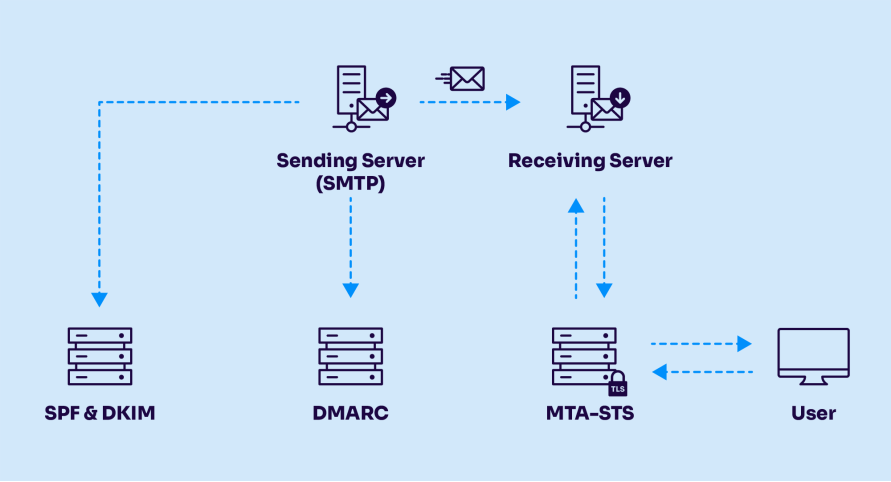
Fortunately, most DMARC issues follow patterns. A systematic approach helps you identify and fix problems faster, avoid overlooking critical steps, and prevent the same issues from popping up again. Instead of random guessing or jumping from one possible solution to another, a checklist gives you a clear, consistent path forward.
Before you start troubleshooting…
You might be tempted to start digging around from the get-go, but take a second to get your troubleshooting toolkit ready.
First, gather your email data. You’ll need:
- Your current DNS records (DMARC, SPF, and DKIM)
- Recent DMARC aggregate reports
- A list of all services that send email on your behalf
- Any recent changes to your email infrastructure
- Reports of specific delivery problems from your team
Next, make sure you have access to these tools:
- Valimail’s domain checker
- A DNS lookup tool (like dig or online DNS checkers)
- DMARC report analyzer
- SPF record validator
- DKIM testing tools
- Access to your DNS management console
One more thing: Take a quick snapshot of your current email authentication setup. Note your successful delivery rates, authentication pass rates, and any existing issues. This will be your baseline, and it’s helpful for measuring improvements as you work through the checklist.
The step-by-step DMARC troubleshooting guide
1. Check your DMARC record Syntax
One small typo, and suddenly your instructions make no sense to receiving mail servers.
First, look up your DMARC record. It should be at “_dmarc.yourdomain.com”. Here’s what to check:
- Does the record start with “v=DMARC1”? This is your version tag, and it needs to be there
- Is your policy tag (p=) present and set correctly? This tells receiving servers what to do with failed messages
- Check your formatting: no spaces around equal signs, semicolons between tags
- Make sure you don’t have any rogue characters or line breaks
Common syntax mistakes to watch for:
- Missing semicolons between tags
- Incorrect spacing around values
- Typos in tag names (like “pct” written as “ptc”)
- Multiple DMARC records (you should only have one)
If your DMARC record looks like this, you’re on the right track:
v=DMARC1; p=none; rua=mailto:dmarc-reports@yourdomain.com; pct=100Check your domain for free here:
Check your
domain now
Enter your domain to see if it’s vulnerable to spoofing or if others are sending emails on your behalf. Instantly check your DMARC, SPF, and BIMI status with a detailed security report.
You’re not fully protected, learn more here.
Check your
domain now
Enter your domain to see if it’s vulnerable to spoofing or if others are sending emails on your behalf. Instantly check your DMARC, SPF, and BIMI status with a detailed security report.
You’re not fully protected, learn more here.
Check your
domain now
Enter your domain to see if it’s vulnerable to spoofing or if others are sending emails on your behalf. Instantly check your DMARC, SPF, and BIMI status with a detailed security report.
You’re not fully protected, learn more here.
Your Domain
Not protected AGAINST IMPERSONATION ATTACKS
DMARC NOT AT ENFORCEMENT
exampledomain1.com
Authentication Status for January 10, 2025
DMARC at Enforcement
SPF Record Configured
BIMI Ready
exampledomain1.com
Authentication Status for January 10, 2025
DMARC at Enforcement
SPF Record Configured
BIMI Ready
2. Verify your SPF record
SPF records tell the world which servers are allowed to send mail from your domain. But even one small mistake can cause legitimate emails to get turned away.
Start by looking up your SPF record at your root domain. Here’s what to check:
- Make sure you have exactly one SPF record (multiple records will cause problems)
- Verify it starts with “v=spf1” (not spf2 or anything else)
- Check that all your legitimate email sources are included
- Look for the all-important 10 DNS lookup limit
The 10-lookup limit is a common troublemaker. Your SPF record might look fine at first glance, but if you’re including multiple services that each make their own lookups, you could be hitting this ceiling without realizing it. When that happens, some receiving servers might not process your entire record, leading to authentication failures.
Watch out for these SPF pitfalls:
- Using too many include statements
- Forgetting to list new email sending services
- Including unnecessary IP addresses or domains
- Missing the trailing mechanism (like -all or ~all)
A clean SPF record might look something like this:
v=spf1 include:_spf.google.com include:sendgrid.net include:mailchimp.com -all| Tip: If you’re making changes to your SPF record, start with a small test group before rolling out changes across your entire email infrastructure. The last thing you want is to accidentally block legitimate email traffic. |
3. Review your DKIM configuration
DKIM proves your emails haven’t been tampered with since leaving your domain. However, if it’s not properly set up, it won’t do its job.
First, check your DKIM setup:
- Verify your DKIM selector exists in DNS (Check selector._domainkey.yourdomain.com)
- Make sure your public key is published and formatted correctly
- Check that your key hasn’t expired (yes, that happens more often than you’d think)
- Confirm you’re using a strong enough key (2048-bit is recommended)
- Test DKIM signing across all your email streams
One of the trickiest parts of DKIM configuration is managing multiple selectors. Maybe you’ve got one for marketing emails, another for your help desk, and another for your CRM. Each needs its own properly configured record.
Common DKIM headaches to watch for:
- Mismatched public/private key pairs
- Expired DKIM keys (especially if you’re using automated rotation)
- Wrong selector names in your email headers
- Missing or incomplete DNS records
- Keys that are too short (1024-bit or less)
Tip: Don’t forget to test DKIM signing for emails from different sources. Just because your marketing emails are signed correctly doesn’t mean your support tickets are too.
4. Check identifier alignment
There are two types of alignment to check:
SPF alignment
- Does your From: domain match the domain in your SPF record?
- Are you sending from subdomains but authenticating at the parent domain?
- Is your alignment mode set to “strict” when it should be “relaxed”?
DKIM alignment
- Does your From: domain match your DKIM d= domain?
- Are your marketing tools signing with their own domains instead of yours?
- Have you checked alignment for all your email streams?
Here’s a real-world example that trips up many organizations: Your marketing email shows:
From: newsletter@company.com
SPF domain: email-service.com
DKIM d= domain: email-service.com
This will fail alignment because neither the SPF nor DKIM domains match your From: domain.
Quick fixes to try:
- Switch to relaxed alignment if strict is causing problems
- Configure third-party services to sign with your domain
- Update your From: addresses to match your authentication domains
- Use proper delegation for third-party senders
5. Look at your DMARC reports
DMARC reports tell you exactly what’s passing, what’s failing, and where the problems are. Unfortunately, raw DMARC reports can look about as friendly as a wall of Matrix code. That’s where a solution like Valimail Monitor can help—it eliminates the XML nonsense and gives you straight insights and action items. Oh, and it’s free.
Here’s what to focus on when reviewing your reports:
Start with the basics:
- What percentage of your emails are passing authentication?
- Which sending sources are failing most often?
- Are there any unexpected domains sending mail?
- Do the failure patterns point to specific issues?
Look for these red flags:
- Sudden drops in authentication pass rates
- Unknown IP addresses are sending mail
- Mismatched authentication results
- Specific receivers are reporting high failure rates
- Unexpected volume spikes
6. Double-check your sending infrastructure
Even with perfect DMARC, SPF, and DKIM records, issues in your sending infrastructure can cause authentication failures. Here’s what to verify:
Start with these checks:
- Confirm all sending IP addresses have correct reverse DNS (PTR records)
- Verify your server clocks are properly synchronized
- Check that TLS certificates are valid and current
- Look up your IPs on major blocklists to ensure they’re clean
Network configuration checklist:
- MX records are correctly configured
- Firewalls aren’t blocking authentication checks
- DNS resolution is working as expected
- Mail servers are set up for proper authentication
Watch out for these common problems:
- Misconfigured relay servers
- Expired certificates
- Server time synchronization issues
- Network problems affecting DNS lookups
- Mail servers are not properly configured for DKIM signing
7. Review third-party sender setup
If you’re like most organizations, you probably have multiple services sending emails on your behalf: marketing tools, help desk software, CRM systems, and more. Each one needs to be properly configured for DMARC to work.
Start by making a complete list:
- Marketing automation platforms
- Customer support systems
- CRM and sales tools
- Cloud services
- Development and testing tools
- Internal applications
For each service, verify:
- They’re included in your SPF record
- DKIM is properly configured and using your domain
- Authentication results are passing in DMARC reports
- They’re sending from authorized domains/subdomains
- Proper delegation records are in place
Common third-party issues to fix:
- Missing SPF includes for new services
- Incorrect DKIM key deployment
- Services using their own domains instead of yours
- Incomplete or incorrect delegation setup
- Authorization gaps after service changes
8. Monitor policy enforcement
Your DMARC policy could be hurting your campaigns. Too strict and you might block legitimate emails, too loose and you leave security gaps. Here’s how to check if your policy is working as intended:
Verify your current policy settings:
- Check your p= tag value (none, quarantine, or reject)
- Confirm your pct= setting is appropriate
- Review any subdomain policies (sp= tag)
- Check your reporting settings (rua= and ruf= tags)
- Verify that the aggregate report addresses are receiving data
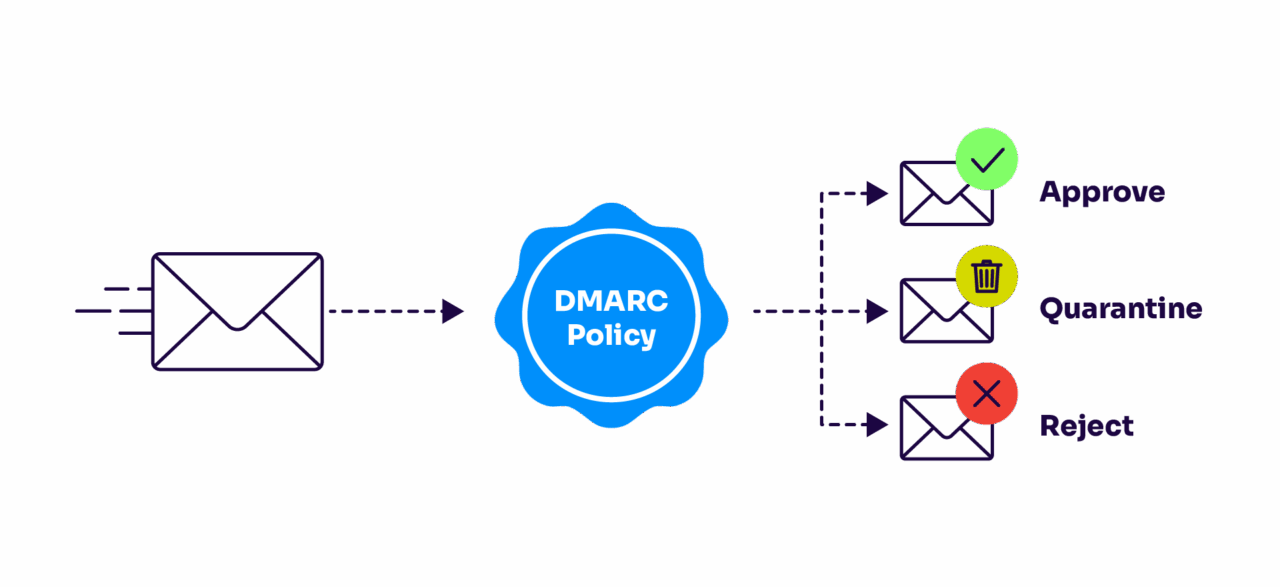
Watch these enforcement indicators:
- Are receivers respecting your policy?
- Do failure rates match your expectations?
- Is your pct= threshold appropriate?
- Are legitimate emails being affected?
- Are your subdomains properly protected?
Troubleshooting enforcement problems:
- Check if specific receivers aren’t following your policy
- Look for unexpected spikes in DMARC failures
- Monitor delivery rates to major email providers
- Track spam folder placement
- Review feedback loops for delivery issues
Tip: If you’re seeing unexpected results, temporarily adjust your policy (like reducing pct= or switching from reject to quarantine) while you investigate. Just don’t forget to change it back once you’ve fixed the underlying issues.
9. Check for common misconfigurations
Here’s what to check:
- Multiple SPF records (you should only have one)
- Incorrect record placement
- Missing underscores in DMARC record name (_dmarc)
- Forgotten legacy or outdated records
- Incorrect syntax in TXT records
Subdomain configuration issues:
- Missing subdomain policies
- Incorrect inheritance settings
- Conflicting records between parent and subdomains
- Forgotten development or test subdomains
- Missing authentication for wildcarded subdomains
Email routing complications:
- Forwarding services breaking authentication
- Incorrectly configured email aliases
- Missing authentication for internal routes
- Misconfigured mail gateways
- Loop detection issues
Service integration problems:
- Cloud services using wrong sending domains
- Missing or incorrect delegate domains
- Authentication gaps in hybrid setups
- Incomplete service provider configurations
- Missing authorization records
10. Test and validate fixes
Once you’ve made changes to your DMARC configuration, you need to verify everything’s working correctly. The last thing you want is to assume you’ve fixed the problem only to discover new issues later.
Start by sending test emails through different paths in your email infrastructure. Send messages from your main mail servers, marketing platforms, help desk systems, and any other services that use your domain. Monitor these test messages carefully—both the authentication results and where they land.
Keep a close eye on your DMARC reports for the next few days. You should see authentication pass rates improving and fewer alignment failures. If you spot any unexpected results, address them quickly before they become bigger problems.
Check your spam folder placement across major email providers. Your legitimate emails should be landing in inboxes, not spam folders. If they’re still hitting spam, you might have missed something in your configuration.
Don’t forget to monitor your email delivery metrics. Look for improvements in delivery rates, opens, and clicks. These numbers can tell you if your fixes are actually working in the real world, not just in technical reports.
Focus on your high-priority email streams: the messages your business can’t afford to have fail. Sales communications, customer service responses, and automated alerts should all be flowing smoothly.
Tip: It can take 24-48 hours for DNS changes to fully propagate, so be patient and keep monitoring. If you’ve made multiple changes, you might need several days of monitoring to double-check that everything is stable.
Partner with Valimail to put your DMARC issues behind you
Yes, this DMARC troubleshooting checklist gives you a solid foundation for fixing most DMARC issues, but maintaining email authentication can be complicated and time-consuming. Not to mention, there’s probably a lot of other things you’d rather be doing (aka, anything).
As your organization grows, you’ll add new services, change email providers, and face evolving security challenges. Each change brings new authentication hurdles. Fortunately, we can help.
Valimail’s zero-trust email authentication platform doesn’t just fix your current issues—it prevents future problems from coming up. We handle the complex parts of DMARC management, from automatic third-party sender authorization to real-time monitoring and alerts.
Instead of spending hours manually troubleshooting email authentication, you could:
- Get complete visibility into your email ecosystem
- Automate sender management and authorization
- Receive instant alerts about authentication issues
- Deploy changes confidently with automated testing
- Protect your domain from impersonation attacks
Managing your DMARC and going through this DMARC consultation checklist can take months or even years, and when you’re short-staffed, there’s simply no time.
If you’re spinning in circles and want to talk to a DMARC expert for some free advice and help, we’re here for you. Schedule a free consultation with us today.