
TLDR: BIMI (Brand Indicators for Message Identification) is an email standard that displays your brand’s logo next to the messages you send. To qualify, your domain needs DMARC at enforcement, a logo in SVG Tiny PS format, a mark certificate for most mailbox providers, and a BIMI record published in DNS.
Getting a logo into the inbox takes more than uploading an image file. Before Gmail, Apple Mail, or Yahoo Mail displays it, the mailbox provider runs a series of checks on your domain. One failed check, and your recipients see a plain circle with your first initial where the logo should be.

Below, we’ll follow that lookup one check at a time, using Valimail’s own DNS records as the example. Then we’ll cover what BIMI looks like in each inbox and how to set it up for your domain.
How BIMI email works
BIMI email works in four checks. When a message arrives, the mailbox provider:
- Confirms it passed DMARC
- Looks up the BIMI record on the sending domain
- Validates the mark certificate
- Fetches the logo file
If all four succeed, the logo appears beside the message.
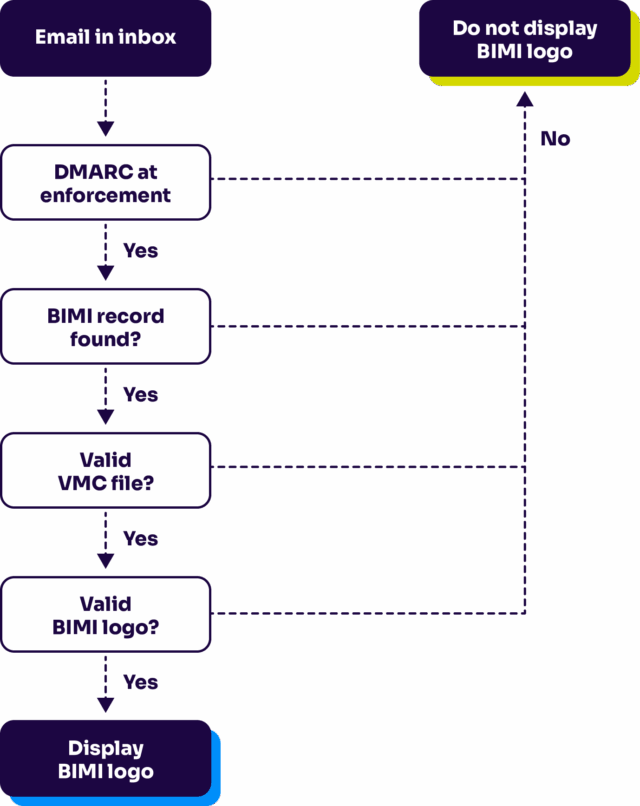
An overview of the steps required for BIMI email logs to display in an inbox.
You can reference this diagram if you get confused in the sections below. If you need clarification about a specific aspect of the diagram, keep reading! We’ll cover each part of BIMI in the sections below at least in summary.
Check out the other chapters in this guide for deeper explanations of specific topics.
1. Checking for email authentication
You don’t want a BIMI logo appearing on an illegitimate email. To mitigate this risk, BIMI requires a strong DMARC (Domain-based Message Authentication, Reporting & Conformance) policy. You can learn more about DMARC by reading our DMARC guide.
Specifically, BIMI requires that the sending domain and the organizational domain’s DMARC policies be set to either “quarantine” or “reject.” Let’s check Valimail’s DMARC policy to see if it meets this requirement:
$ nslookup -type=txt _dmarc.valimail.com
Server:   	 10.240.80.246
Address:    10.240.80.246#53

Non-authoritative answer:
_dmarc.valimail.com    text = "v=DMARC1; p=reject; rua=mailto:dmarc_agg@vali.email,mailto:dmarc.reports@valimail.com"
Great, the policy is set to “reject.” Now that we’ve confirmed that the domain supports email authentication, we can check the actual BIMI record
2. Finding your BIMI policy
The email platform checks your BIMI policy by looking for a special DNS record (called the BIMI record). The record type is TXT.
$ nslookup -type=txt default._bimi.valimail.com
Server:   	 10.240.80.246
Address:    10.240.80.246#53

Non-authoritative answer:
default._bimi.valimail.com    text = "v=BIMI1; l=https://amplify.valimail.com/bimi/valimail/ekURFPbPVyt-valimail_inc_256301583.svg; a=https://amplify.valimail.com/bimi/valimail/ekURFPbPVyt-valimail_inc
_256301583.pem"
The record tells us three things:
-
- The “v” tag says we’re using version BIMI1 (the only extant version of BIMI).
-
- The “l” tag tells us where the logo file is hosted.
-
- The “a” tag points us to a special file called the Verified Mark Certificate, which allows us to verify trademark ownership of the logo.
We need to verify that the logo has been verified by a CA (certificate authority). This lets us know that the logo is a legitimate trademark owned by the sending organization. BIMI has specific requirements for logos. For example, the image must:
-
- Use the custom SVG P/S format
-
- Be smaller than 32 KB
-
- Be served via HTTPS (not plain HTTP)
For more detailed technical image file requirements, consult the BIMI Group’s webpage.
The logo file can be found using the “l” tag from the BIMI record. Using the same Valimail BIMI record from earlier, we’re led to this SVG file. At this point in the process, the inbox can successfully display the logo image next to an email in the inbox.


Choose a simple solution for easily getting your logo in inboxes

Implement BIMI at a fraction of the cost and time compared to deploying it manually

Increase open-rates and visibility for your marketing content
3. Validating the mark certificate
The a= tag points to a certificate from a certificate authority (CA) that has verified your organization and your logo. There are two types:
- Verified Mark Certificate (VMC): For logos registered as trademarks. Gmail adds a blue verified checkmark for VMC senders, and Apple Mail requires one.
- Common Mark Certificate (CMC): For logos without a registered trademark that have been in public use for at least 12 months. Gmail displays the logo without the checkmark.
The mailbox provider validates the certificate and confirms that the logo inside it matches the file in your l= tag. A record with an empty a= tag is called self-asserted. Yahoo Mail and AOL may still display the logo, but Gmail and Apple Mail won’t.
4. Fetching the logo file
Last, the mailbox provider fetches the logo from the l= URL. BIMI is strict about the file:
- Format: SVG Tiny PS (Portable/Secure), a locked-down SVG profile with no scripts, animation, or external references
- Size: 32 KB or smaller
- Shape: Square, with the logo centered so it still reads well when cropped to a circle
- Hosting: A public HTTPS URL
With all four checks passed, the logo shows up next to the message. Our BIMI logo chapter covers file prep and conversion, and the BIMI Group publishes the full SVG requirements.
BIMI examples: What recipients see in each inbox
A BIMI logo doesn’t look the same everywhere. Each mailbox provider decides which certificates it accepts and how it displays the result.
| Mailbox provider | Displays BIMI logos | Certificate needed | What recipients see |
|---|---|---|---|
| Gmail | Yes | VMC or CMC | Logo in the sender avatar, plus a blue verified checkmark for VMC senders |
| Apple Mail and iCloud Mail | Yes | VMC | Logo beside the sender name |
| Yahoo Mail and AOL | Yes | None required | Logo in the sender avatar, depending on sending reputation |
| Microsoft Outlook | No | Not applicable | Sender initials or a profile photo |
Fastmail, Zoho Mail, and several regional providers also display BIMI logos. The BIMI Group keeps a current list of supporting mailbox providers.
If you want the widest reach, a VMC covers the most inboxes and is the only route to Gmail’s checkmark.
Diving deeper into BIMI email
The information above covered how a BIMI logo appears next to an email in your inbox. Yet there are many important topics we’ve left unexplored. For example, what are the requirements for making a BIMI logo? Furthermore, how do you acquire a VMC file?
If your logo isn’t showing and you can’t tell which check failed, start with Valimail’s free BIMI checker. Otherwise, pick the chapter that matches where you’re stuck.
All chapters in this guide:
- What is BIMI?
- BIMI record
- BIMI logo
- Verified Mark Certificate
- BIMI checker
- BIMI generators
- Using BIMI with Apple Mail
- BIMI email security
- Email branding
- BIMI for email marketing
- BIMI best practices
Find out where your domain stands
Most BIMI projects stall at the first check. If your DMARC policy is still at p=none, no logo file or certificate will change what your recipients see. So start there. Look up your domain’s policy, list every service sending on your behalf, and work toward enforcement. The logo, certificate, and record are the easier part.
Valimail Monitor is free. It shows you every service sending as your domain and which ones pass authentication, and its BIMI simulator previews how your logo will look in the inbox.