TLDR: An email that won’t send is almost always failing at one of three points: your device, your outgoing mail server, or the recipient’s server. Typos, weak connections, oversized attachments, and wrong server settings cause most failures on your side. On the recipient’s side, the usual causes are full mailboxes, spam filters, and missing email authentication.
An email not sending is a small annoyance right up until it’s a password reset, an invoice, or an appointment confirmation that never shows up. Email rarely fails without leaving a clue, though. A message stuck in your outbox points to one set of causes. A bounce message points to another. A message that says “Sent” and still never arrives points to a third.
Below, we’ll help you match what you’re seeing to the cause, then fix it.
Find the cause by what happens when you hit send
Most sending problems show up in one of four ways. Find yours, then go to the matching section.
| What you see | Most likely cause | Where to look |
|---|---|---|
| The message sits in your outbox or stays on “Sending” | A weak connection, an attachment that’s too large, or wrong outgoing server settings | Common reasons, then configuration errors |
| Your email app shows an error right away | Outgoing server settings, an expired password, or a sending limit | Configuration errors and sending limits |
| A bounce message comes back | A wrong address, a full mailbox, an oversized message, or a rejection by the receiving server | The error code table |
| It says “Sent,” but the recipient never gets it | Spam filtering, missing authentication, or a poor sender reputation | Email delivery issues after you hit send |
How email delivery works
Knowing the route helps you spot where a message got stuck. Every email makes the same five-stop trip:
- You hit send: Your email app hands the message to an outgoing mail server using SMTP (Simple Mail Transfer Protocol).
- The outgoing server checks you: It confirms your sign-in, your sending limits, and the message size.
- It finds the recipient: The server looks up the recipient’s domain (the part after the @) in DNS to learn which server accepts its mail.
- The receiving server checks the message: Does the address exist? Is there room in the mailbox? Does the message pass authentication? Does the sender have a good reputation?
- The message is delivered or refused: An accepted message goes to the inbox or the spam folder. A refused one comes back to you as a bounce message.
A send can fail at any of those handoffs. Failures at stops 1 and 2 leave the message in your outbox. Failures at stops 4 and 5 produce a bounce, or a message that just lands in spam.
8 common reasons why your email isn’t sending
Zeroing in on why your email isn’t sending can sometimes be as tricky as figuring out why you have a fever. It could be a virus, bacteria, fatigue, food poisoning, infection, pregnancy, heat, inflammation, cancer, or medication…
Fortunately, pinpointing the reason why your email isn’t sending is a little bit easier (in our opinion). Let’s start with the most common reasons:
- Incorrect email address
- Internet connectivity issues
- Server problems
- Full inbox or storage quotas
- Email size limits
- Sending limits
- Account locked or flagged
- Poor reputation
1. Incorrect email address
One common reason for email non-delivery is simple human error in typing email addresses. Typos or mistakes in the domain part of the email (like accidentally typing ‘.con’ instead of ‘.com’) can prevent the email from reaching its intended destination.
2. Internet connectivity issues
A stable internet connection is essential for sending emails. If your internet connection is weak or unstable, it can disrupt the email-sending process, causing emails to get stuck in the outbox.
3. Server problems
Email delivery can also be affected by email server issues, whether the sender’s or the recipient’s. Problems like server downtime or maintenance can result in emails being delayed or not delivered at all. Monitoring server status (particularly during critical communication periods) is important to ensure consistent email delivery.
4. Full inbox or storage quotas
Email delivery can fail if the recipient’s inbox is full or if they have reached their storage quota. This situation prevents new emails from being delivered. Regular inbox management and monitoring of storage limits can help avoid such issues, ensuring that important emails aren’t bounced back due to lack of space.
5. Email size limits
Most email providers impose limits on the size of emails, including attachments. If an email exceeds these size limits, it won’t be delivered. Being aware of your email provider’s size limits and compressing large files before sending them can prevent these issues.
6. Sending limits
Every mailbox provider caps how many messages or recipients you can send to in a day. Hit the cap, and sending pauses, often for up to 24 hours. If you send to large lists, use an email service provider (ESP) built for volume.
7. Account locked or flagged
Providers pause sending when they spot unusual activity, such as a sign-in from a new location or a burst of outgoing messages. Sign in through your provider’s website, complete any security check, and change your password if the activity wasn’t yours.
8. Poor reputation
Mailbox providers keep a running record of how recipients react to messages from your domain and IP address. Too many bounces or spam complaints, and they start rejecting your messages or filing them as spam. Our guide to checking your domain reputation shows how to see where you stand.
Email delivery issues that start after you hit send
These four are harder to see. Your email app reports the message as sent, and the trouble starts on the receiving end.
Spam filters and email authentication
Spam filters protect inboxes from unwanted emails. However, these filters can sometimes be overzealous, mistakenly flagging legitimate emails as spam. They’re not perfect.
This is where email authentication protocols like SPF (Sender Policy Framework), DKIM (DomainKeys Identified Mail), and DMARC (Domain-based Message Authentication, Reporting, and Conformance) come in handy.
They verify that the email is from a legitimate source, helping your emails get the green light from spam filters. Stay up-to-date with these authentication methods to ensure your emails reach their intended destination.
IP address reputation
Your IP address is like your email’s home address on the Internet. A good reputation of this address is vital for email deliverability. If your IP address is associated with spamming or other dubious activities, it can harm your ability to send emails effectively.
Maintaining a clean IP reputation involves monitoring for any spammy behavior and ensuring your email practices align with best practices. Following good-sending habits makes your emails less likely to be rejected or marked as spam.
Configuration errors in email settings
The backbone of email sending lies in the configuration of SMTP, POP3, and IMAP settings. A small mistake in these configurations can lead to big problems in email delivery. Common errors include incorrect server addresses, port numbers, or authentication details.
Check these against your provider’s documentation:
- Outgoing (SMTP) server name: Copy it as your provider lists it
- Port: 587 or 465 for most providers. Many internet providers block port 25.
- Encryption: TLS or SSL turned on
- Sign-in: Your full email address and current password. After a password change or security update, some apps need a fresh sign-in or an app password.
Changes in email sender requirements
Sometimes, email inbox providers make big changes to the messages (and senders) they’ll allow to reach clients using their inbox services.
For example, with Gmail and Yahoo’s new sender requirement that went into effect in 2024, senders must follow a new list of requirements to ensure these email inbox providers deliver their trusted messages:
- Authenticate all messages with DMARC (technically, authenticate all messages with SPF or DKIM aligned with the From domain)
- Send from a domain with a DMARC policy of at least p=none
- Have valid forward and reverse DNS that match each other
- Use the one-click unsubscribe header and an unsubscribe link in the footer
- Maintain a low spam rate of < 0.1%
- Encrypt your email (technically, require TLS)
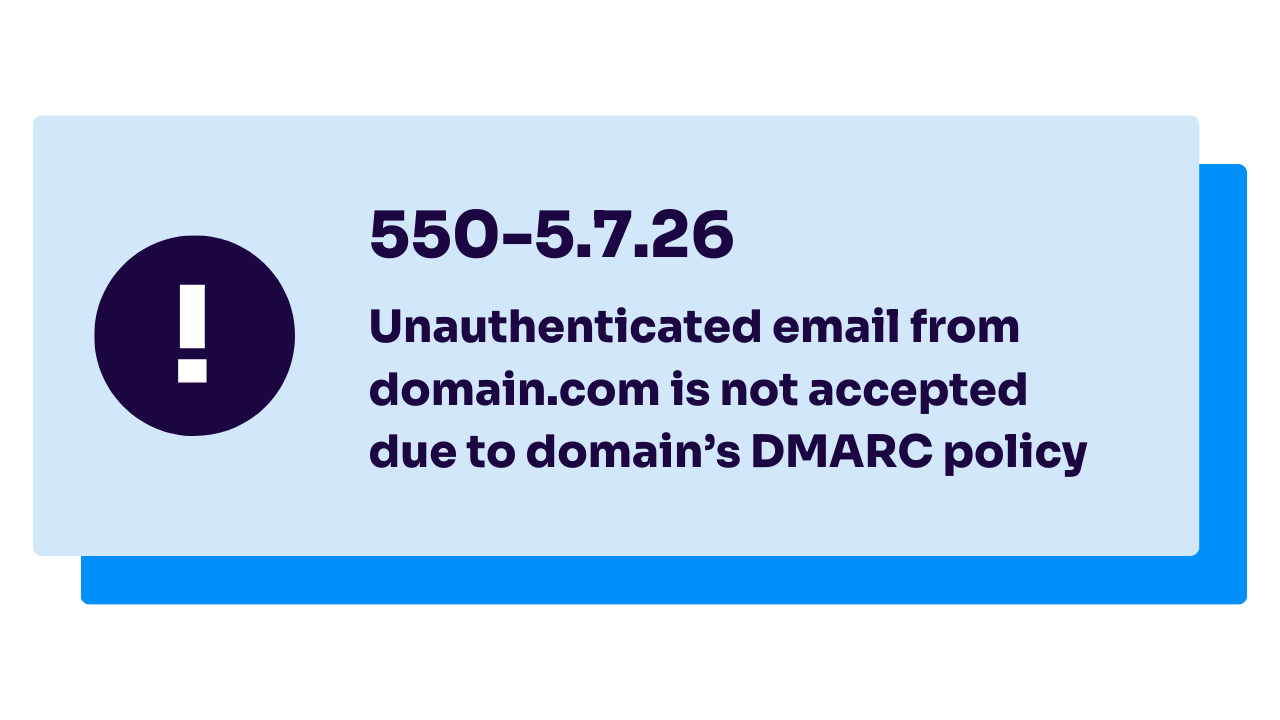
If you don’t follow these requirements, you could receive errors that your DMARC is failing.
What your bounce message is telling you
A bounce message is mostly clutter, with one useful line. Look for a three-digit code followed by a longer one, such as 550 5.1.1. Codes that start with 4 are temporary, and the server will try again. Codes that start with 5 mean the message was refused.
| Code | What it means | What to do |
|---|---|---|
| 550 5.1.1 | The address doesn’t exist | Check the spelling, or confirm the address with the recipient |
| 552 5.2.2 | The recipient’s mailbox is full | Reach the recipient another way |
| 552 5.3.4 | The message is too large | Shrink the attachment or share a link |
| 421 4.7.0 | A temporary block or rate limit | Wait, then send at a slower pace |
| 550 5.7.1 | Refused by the receiving server’s policy, often a blocklist | Check blocklists for your domain and IP address |
| 550 5.7.26 | Gmail couldn’t authenticate the message | Set up SPF and DKIM for your domain |
| 550 5.7.515 | Microsoft rejected the message for failing its authentication requirements | Set up SPF, DKIM, and DMARC |
| 550 5.4.1 | Microsoft refused the recipient address | Follow our 550 5.4.1 fix guide |
The exact wording varies by provider, but the numbers typically mean the same thing everywhere.
How to fix your emails not sending
If there’s a reason your email isn’t sending, there’s a solution. Here, we’ll go over a list of common ways to get your email out the door and into your customers’ inboxes.
1. Authenticate your emails
Email authentication involves setting up protocols like SPF, DKIM, and DMARC. These protocols validate your emails, ensuring they’re seen as trustworthy by email servers, reducing the likelihood of them being marked as spam.
Not authenticated yet? We can help.
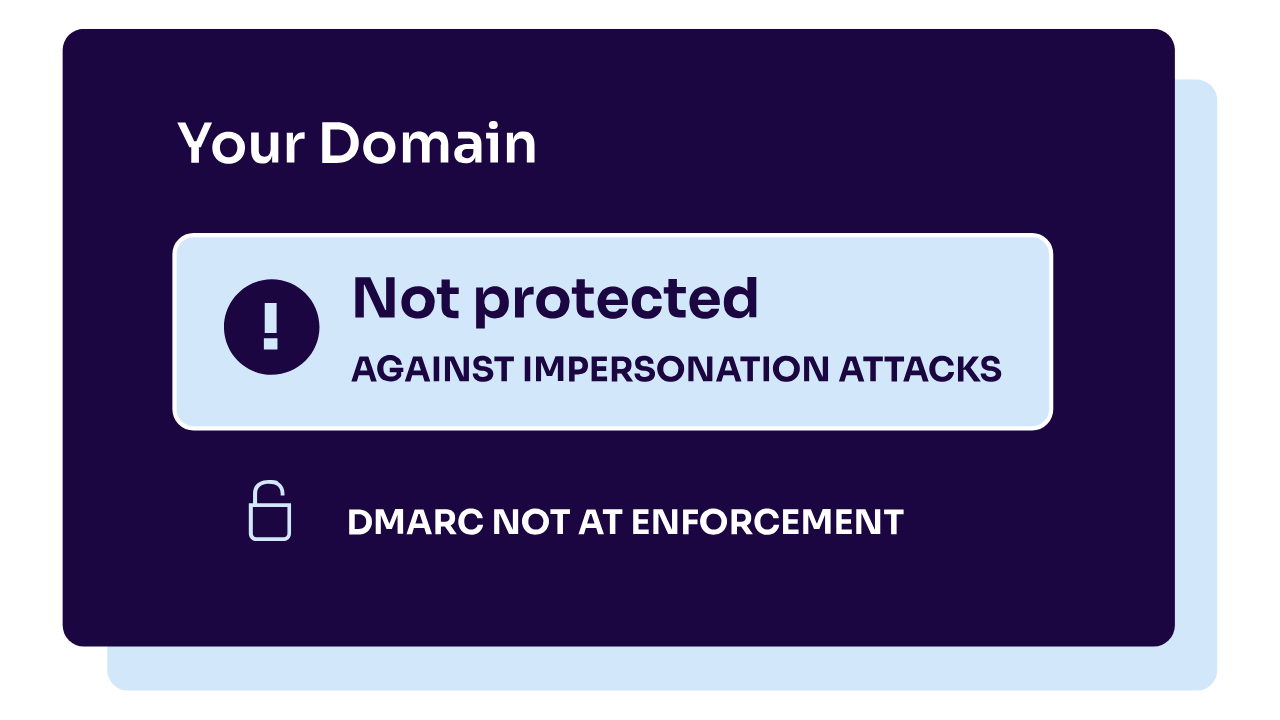
Valimail accelerates your path to DMARC enforcement without any manual SPF or DKIM configuration.
2. Verify email addresses
Before you hit send, verify the accuracy of the email addresses on your list. Manually checking the validity of all your addresses can be a headache, and that’s why we recommend using an email validation tool—it’ll check email addresses in real time to help you never send messages to non-existent or incorrect addresses.
This saves time and resources and protects your sending reputation by reducing bounce rates.
3. Test internet connectivity
If you encounter issues, test your connection’s speed and stability. Sometimes, restarting your router can solve these problems. Persistent issues might require contacting your internet service provider.
4. Adjust email size and format
Double-check that your email size doesn’t exceed the limits set by email providers. Compress files (using cloud-based links for large attachments) or adjust the email format to help with delivery.
5. Talk to your IT department or email service provider
If basic troubleshooting doesn’t resolve the issue, it’s time to contact your email service provider or your IT department. They can delve deeper into potential server-side problems, configuration errors, or other technical difficulties affecting your email delivery.
6. Ensure email compliance
Stay up to date with the latest email security requirements and ensure you’re compliant. If you’re a financial institution that handles banking information? You need DMARC as part of the updated PCI compliance requirements. If you’re a bulk sender, you must meet Google and Yahoo’s email authentication requirements.
Proactive ways to prevent future sending issues
Most sending problems are easier to prevent than to diagnose. Five habits cover the majority of them:
- Authenticate every sending service: Set up SPF and DKIM each time you add a platform that sends as your domain
- Move DMARC to enforcement: A policy of p=quarantine or p=reject stops others from sending as you
- Read your DMARC reports: They show new senders and failures before your recipients notice
- Keep your lists clean: Remove bounced and inactive addresses so your reputation stays healthy
- Follow mailbox provider rules: Google, Yahoo, and Microsoft update their sender requirements, and the changes are enforced
Check your domain before the next message bounces
If your messages reach some recipients and bounce at others, or everything stopped at one mailbox provider overnight, authentication is the likeliest cause. It’s also the fastest one to check. Enter your domain in Valimail’s free Domain Checker to see if SPF and DMARC are set up correctly.
From there, Valimail Monitor shows you every service sending as your domain and which ones are failing authentication. It’s free, with no trial period.
Get started with Monitor for free.
Whether you want to enhance your email deliverability, safeguard your domain, or stay compliant with the latest email standards, we’re here to help. Schedule a demo now to learn how we can better protect your domain and brand.
Frequently asked questions about email not sending
How do I fix my email not sending?
Start with the quick checks: Confirm the recipient’s address, test your internet connection, and keep the attachment under your provider’s size limit. If the message still fails, read the bounce message for an error code, then check your outgoing server settings.
Why is my email staying in the outbox and not sending?
A message stays in the outbox when your email app can’t hand it to the outgoing server. The usual causes are a weak connection, an attachment that’s too large, offline mode, or wrong SMTP settings. Fix the cause, then open the message and send it again.
Why am I receiving emails but cannot send them?
Incoming and outgoing mail use different servers. If you can receive but can’t send, the outgoing (SMTP) settings are usually wrong: the server name, the port, or the sign-in. A sending limit or a security hold on your account can cause the same symptom.
Why is my email not being delivered?
A sent message that never arrives was either rejected or filtered by the receiving server. Rejections come with a bounce message and an error code. Filtering sends the message to spam without telling you, usually over missing authentication or a poor sender reputation.